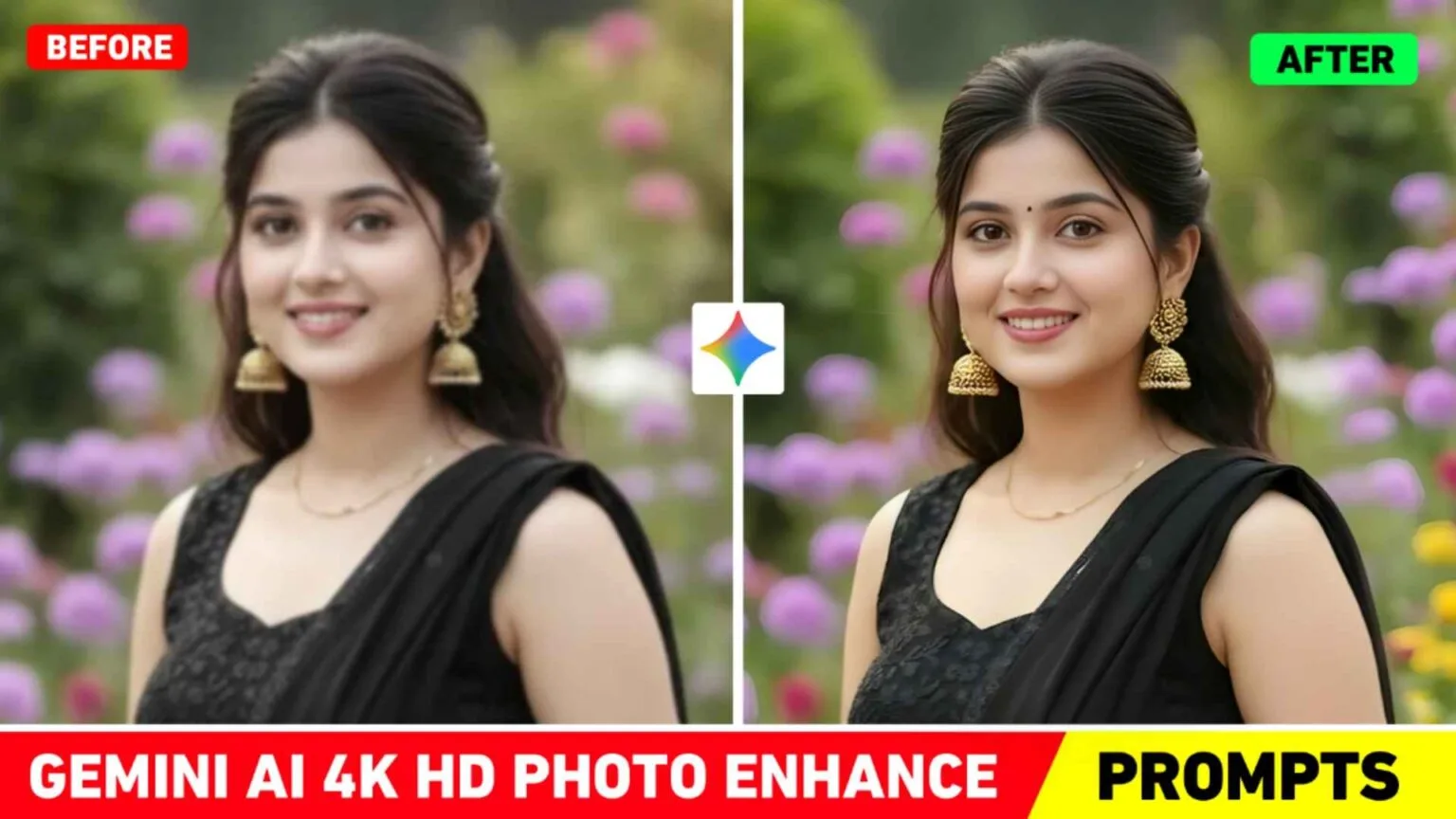
Google Gemini Photo Enhance Prompt – Nowadays, people can easily create any kind of image using Google Gemini. But unless the photo is edited or improved slightly, it doesn’t quite capture the desired effect. I’m a content creator, and people often tell me that the photos created by Google Gemini look a bit blurry or have a soft quality. This is why people use Remini, Magic Eraser, and many other photo enhancer apps to make their photos HD. But the truth is, most apps don’t deliver the results people want. It has been observed in many editing apps that sometimes photos become over-smoothed or lose their natural look. So I thought, since people are doing almost all their creative work using Google Gemini, why not use Gemini to enhance photos as well. With this in mind, in today’s new article we’re going to provide you with a Google Gemini Photo Enhance Prompt. With this prompt you can transform any blurry photo into a high-definition and clear image without altering the face.
Google Gemini Photo Enhance Photo Editing
While Remini is considered the most popular app for enhancing photos its biggest problem is that it often completely alters the face during the enhancement process making the photo look unnatural and unattractive. The other editing apps don’t provide results that are as good. So the solution to all these problems is the Gemini Photo Enhance Prompt. In this process, we will provide at least two types of prompts to enhance the photo to HD quality using Gemini. Which you can use with any of your photos. I personally tested these prompts on my own photos first, and only when I got the right, natural, and detailed results did I decide to share them with all of you. Gemini enhances your entire photo in detail using these prompts. It removes blur and improves lighting and sharpness. These prompts will not change the face at all. You can enhance photos to professional quality directly with Google Gemini without needing any extra apps.
Gemini Photo Enhance Prompt
Use the uploaded photo as the main and exact reference. Enhance the image to ultra-realistic HD quality similar to Remini AI. • Fix blur, motion blur, and low resolution. • Restore natural skin texture without over-smoothing. • Sharpen facial features (eyes, eyelashes, eyebrows, lips, jawline). • Improve lighting, contrast, and color balance naturall. • Remove noise, grain, and compression artifacts. • Maintain original face shape, age, and identity (no face change). • Correct focus and clarity for a DSLR-like result. • High dynamic range, clean background, professional photo finish. • Photorealistic, 4K ultra-clear output. • No artificial look, no cartoon effect, no extra details. Make the final image look like it was captured using a high-end DSLR camera in perfect lighting.Use the uploaded photo as an exact reference.
Enhance it to clean, sharp HD quality.• Remove blur and noise
• Improve clarity, sharpness, and lighting
• Keep natural skin texture (no over-smooth)
• Preserve original face, age, and identity
• Correct colors and contrast naturally
• DSLR-style focus, professional photo look
• Realistic 4K output, no artificial or cartoon
How To Use Google Gemini Photo Enhance Prompt
You may have noticed that we showed a before-and-after photo sample in paragraph three. One image is blurry and the other is an HD image. To achieve that same HD quality for your own photos, we’ve provided two different prompts. This is so that if you don’t get good results with one prompt, you can try the other. To use these prompts to enhance your photos to HD quality with Google Gemini, first, press and hold either of the prompts to copy the entire text. After that, go to the Google Gemini website or application. If you want to do it through the website, we have provided a button below. In paragraph 3, click on the button labeled “Enhance your photo,” and the website will open. Now, first select the “Create Image” option, then click on the plus icon on the bottom left side and select the “Gallery” option. Finally, choose the photo you want to enhance to HD quality. Paste the same prompt into the message box and send it. Your photo will be generated in HD quality shortly. Click on your photo, then click on the save icon to save it.
Conclusion
In conclusion, the Google Gemini Photo Enhance Prompt offers an excellent solution for anyone who wants to make photos HD and clear without using extra editing apps. Apps like Remini often alter the face or make photos look artificial, while Gemini prompts preserve the photo’s originality. This article, we have provided two types of prompts for enhancing or improving the quality of photos using Gemini. Using both of these prompts, you can easily transform any blurry image into a high-quality one. Use the correct prompt to transform your photo into ultra-HD quality within seconds.